Connect to any computer
Jump Desktop is a secure and reliable remote desktop app that lets you connect to any computer, anywhere in the world.


JUMP DESKTOP FOR TEAMS
Remote Work That Works!
Cloud Remote Desktop Infrastructure
Jump Desktop for Teams is enterprise grade cloud remote desktop infrastructure for your entire company. Rapidly deploy and give your entire team secure remote desktop access from anywhere. No VPNs or gateways required.
Simple to get started
Invite your team, add computers and choose who is allowed access. That's it! Your team will be ready to connect instantly. You don't need to be a tech wizard. We'll sweat the details and make sure your team can connect securely from anywhere.
Organize your team
Organize your team into groups and give users access to an entire group of computers. Groups help you get organized and efficiently manage a large number of users and computers.
Powerful access controls
You're always in control of who has access to your team's computers. Add or remove access for team members anytime.
Cloud access logs
Use your team's dashboard to see which team members accessed computers. Team access logs are encrypted and stored securely in the cloud for up to 90 days.
Single Sign On
Single Sign-On (SSO) lets your team sign into Jump Desktop using your company account credentials.
Save time using customized installers
Customized installers let you quickly and painlessly add computers to your team. It takes a few seconds to create a customized installer specifically for your team. Share the installer's public link with anyone you want. You can revoke installers anytime too. Mass deploy installers via group policy or MDM.
No limits
We've made it really simple: Unlimited computers and unlimited simultaneous connections for every team. There are no arbitrary limits and no need for you to keep track of how many computers you're managing.
Easy billing
Billing is super simple and predictable. You'll be billed by the number of users on your team. Add or remove users from your team at anytime during your billing cycle. It couldn't be simpler. See Teams Pricing and FAQs for more information.
Easy migration
Already a Jump Desktop user and want the simplicity that Teams provides? We've got you. We can migrate computers from your personal account to your team so that you can get started instantly with Teams.
For iOS
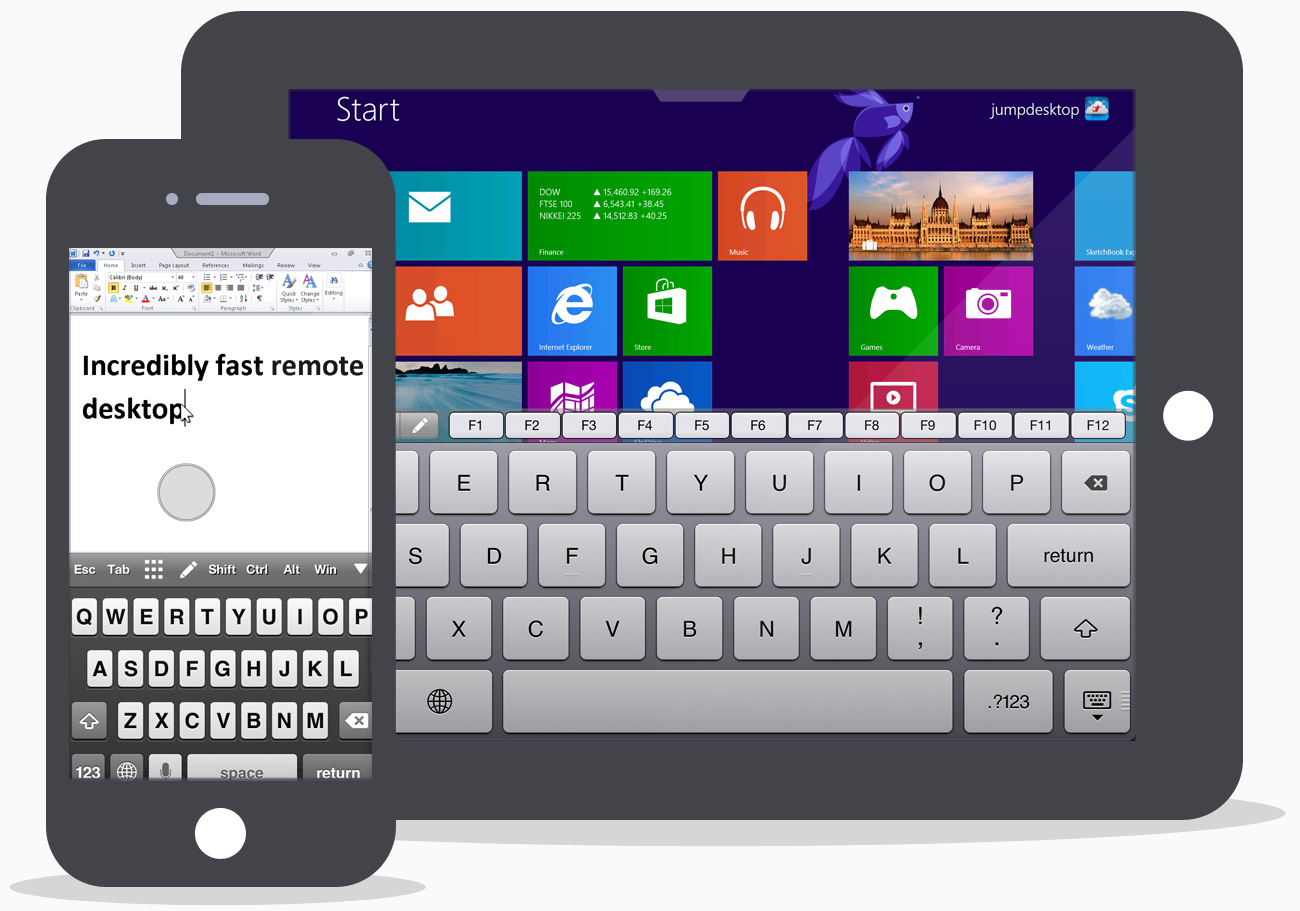
Jump Desktop unleashes the full power of your iOS device when connecting to your computer. With support for multi-tasking, full bluetooth keyboard, physical mice, HDMI/VGA out with full monitor resolution support (not just a mirror), copy/paste, auto-correction, AirPrint* and audio streaming, Jump will help utilize your iOS device to the max. Continually updated to support the latest iOS devices.
* Requires RDP connections
For Mac
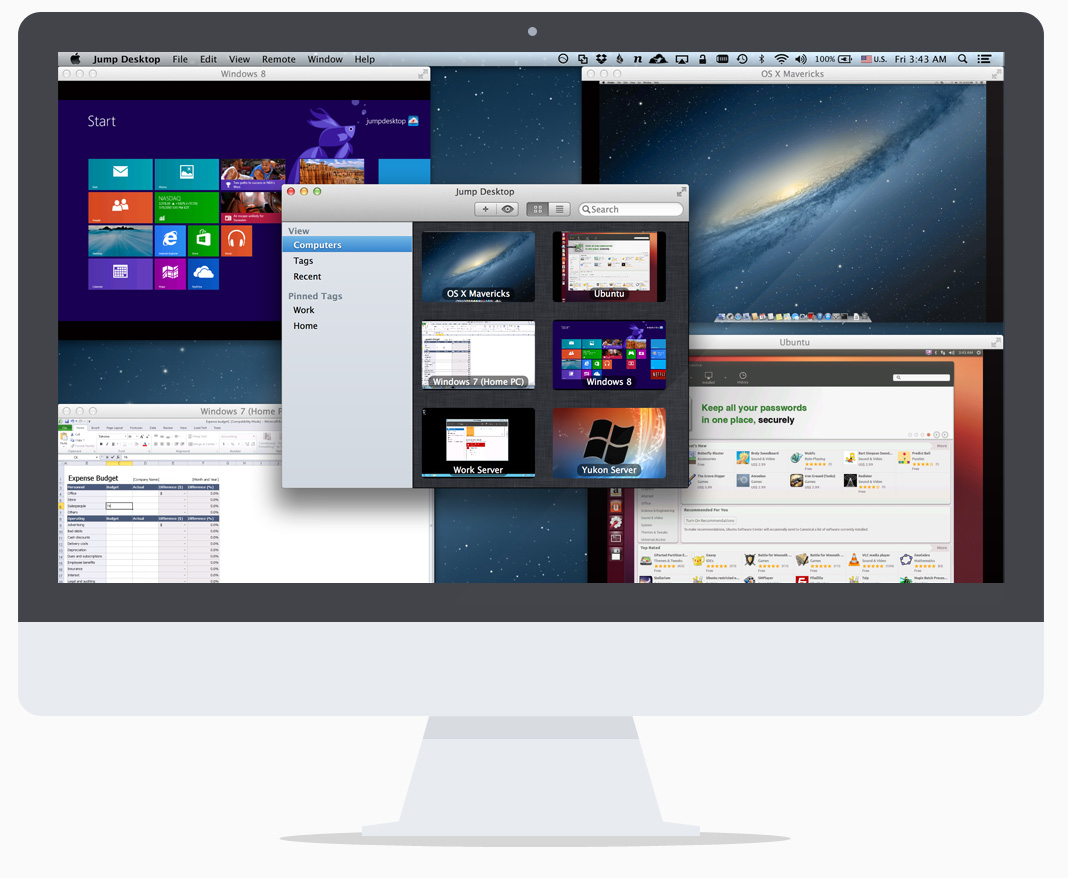
Jump Desktop is the best remote desktop client on the Mac. With features built from the ground up to increase productivity, Jump is a must-have. The unique keyboard remapping feature lets you use Mac shortcuts on Windows and achieve maximum productivity during long remote desktop sessions. Live Previews help you keep an eye on all your machines. Jump is tightly integrated into macOS: Spotlight integration lets you launch connections quickly from anywhere. Advanced energy saver features ensures Jump has minimal impact on your Macbook’s battery while on the road. Use Tags to organize your machines. Open multiple connections inside the same window via Jump's Tab support. Try the free 14 day trial now and become productive!


For Windows
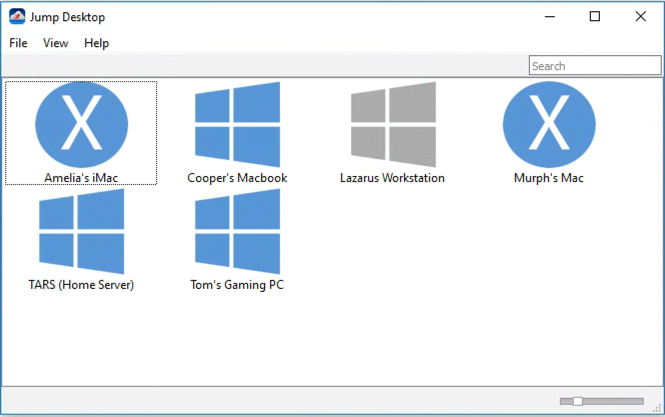
High performance, low latency screen sharing via the Fluid Remote Desktop protocol. Always secure - connections are always encrypted end-to-end. Effortless setup - install the Jump Desktop Connect app on the remote computer and sign in. Connect from anywhere. Unattended access. Free for business and personal use.
Requires Windows 7 or later
NO HASSLE SETUP
You'll be up and running in less than five minutes. Automatic configuration of computers is quick, simple and doesn't require networking knowledge. Power users can connect to computers using an IP address or hostname.
FLUID REMOTE DESKTOP
Fluid is our next generation remote desktop protocol designed for very high performance screen sharing and collaboration. Fluid can share your screen at 60fps while using only 1/10th of the bandwidth when compared to traditional protocols like RDP and VNC. Fluid lets you manage your servers, work on your documents, watch movies, edit photos and even collaborate with multiple users on the same desktop.
COLLABORATIVE SCREEN SHARING
Collaborative Screen Sharing lets many users connect to the same desktop. Each user gets their own mouse cursor and can point and click without fighting over the same cursor. Great for editing documents with coworkers, tweaking designs with remote team members, creating presentations together, and teaching Grandma how to clean out her email.
SUPPORTS OPEN STANDARDS
Jump Desktop is a true RDP and VNC client. You don’t need to download additional software to connect to your machine if you already have RDP or VNC configured. Just enter your IP address or hostname to connect!
RICH RDP CLIENT
Jump Desktop features one of the fastest RDP rendering engines on the planet. Built in-house and hand tuned for high performance on mobile devices. Jump’s RDP engine also supports audio streaming, printer and folder sharing, multi-monitors, touch redirection, RD Gateway and international keyboards.
INCREDIBLE VNC CLIENT
Built-in SSH and TLS/SSL support to protect your privacy. Multiple quality modes and a unique progressive rendering engine help accelerate performance. Clipboard or Pasteboard (for Macs) syncing ensures you’re productive while you work remotely.
BUSINESS SOLUTIONS
Would you like to have Jump Desktop’s amazing features integrated into your own business to suit your requirements? No problem! We work with companies globally to do exactly that.
SUPPORT
We offer support through a number of channels. If you need any help with Jump you can take a look at our FAQ, have a look at the community, tweet us or email us directly.