


Remote Desktop for AI Agents
Let AI agents use your Windows, Mac, and Linux computers and virtual machines, the way you do. Watch live and take over anytime, free with any Jump Desktop account.
Jump CLI
Agent Setup
Add Jump CLI to your agent once, and it can reach every computer in your account. Jump CLI is in beta.
-
Install Connect. Install Jump Desktop Connect on each computer you want your agent to use. Connect install guide
-
Add Jump CLI to your agent. Install Jump CLI on the same computer as your agent and sign in. Your agent starts it when it needs it. MCP server guide
-
Follow the AI agents workflow. Get the recommended setup for watching agents and taking over. AI agents workflow
# Works with any Jump Desktop account
$ jump-cli auth viewer login

# Your agent runs the MCP server
$ jump-cli mcp

# Then just ask
> Connect to my Windows build machine and
  test the installer I just built.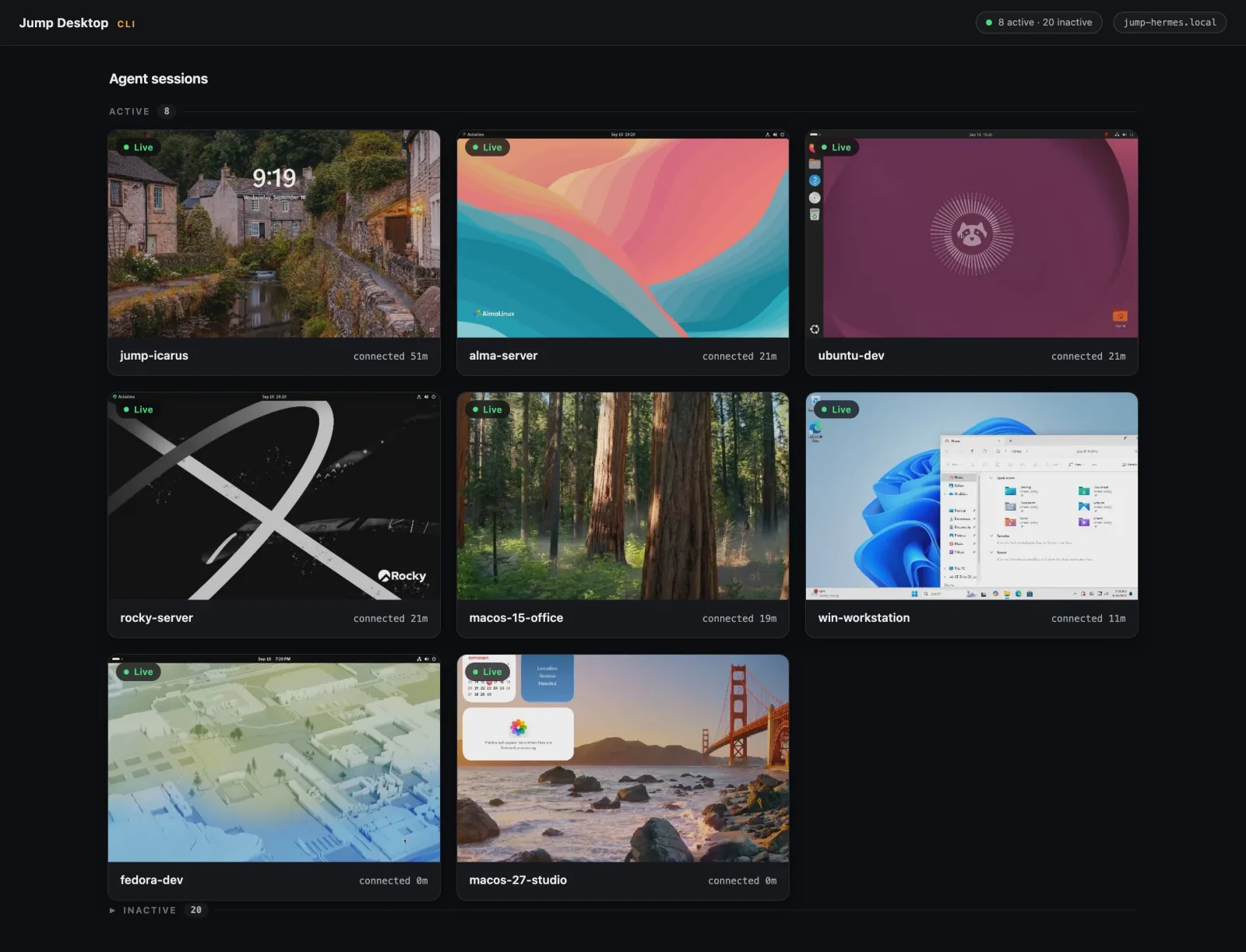
Agent Capabilities
An agent works on your computers the way you do, through the screen, mouse, and keyboard.
Up to 8 Computers
Connect to as many as 8 computers at the same time.
Screenshots
Agents read the screen and check the result of each step.
Mouse and Keyboard
Click, type, and work in any app, the way you would.
Clipboard
Move text in and out of a session through the clipboard.
System Audio
Record the sound playing on a computer to a file.
Displays
Create virtual displays, so an agent can work on a computer with no monitor.
Privacy Mode
Blank the computer's screen and block its local keyboard and mouse while the agent works, where an admin allows it.
Online Status
See which of your computers are online before an agent connects.
Computer Setup
Set up a new computer in one command, on the computer itself or over SSH.
Mission Control
Watch every agent session live, with a list of each action the agent takes.
- Have a coding agent test your app on a Windows, Mac, or Linux computer.
- Hand off repetitive work and check in as it goes.
- Sessions waiting on your sign-in show up first, so nothing stalls.
Take Control
Take control anytime, then hand it back when you're done.Password Entry
You type passwords in Mission Control. They're never sent to the agent.Idle Pause
Screen updates pause while an agent is idle, to save bandwidth.Free
Free with any Jump Desktop account.Security and Privacy
You decide which computers an agent can reach and what it can change.
End-to-End Encryption
Every session is encrypted end to end. Jump Desktop can't see your computers' screens.
Viewer Access
Sign agents in with a viewer token. They can connect to computers but can't change account or team settings.
Control Access
Give agents their own account or, on a team, their own Access Groups.
Private Dashboard
Mission Control runs on your own computer, so sessions stay in your hands.
Automatic Cleanup
Screenshots and clipboard files are deleted when the session ends.
Revoke Anytime
Sign out or revoke a token to end an agent's access.
Check In Anytime
Look in on an agent from Jump Desktop, then disconnect without disturbing the work.
- Connect while an agent works and see the same displays it uses.
- Check on overnight builds and long tasks from wherever you are.
- Let a script or agent check progress for you with screenshots.
Keep Displays
Virtual displays stay put between visits, so you pick up right where you left off.Observe Mode
Look without touching, so a stray click doesn't interrupt the work.Any Device
Take a quick look from your iPhone, iPad, or Android device (in beta).Sleep Override
Teams on Enterprise can keep computers awake, so agents can always connect.Connect an Agent
Install Jump Desktop Connect on the computers your agent will use, then add Jump CLI to your agent.